The Text area displays study, report, and order information. Exactly how much Text area information is presented varies depending on how the Text area has been configured and whether the Client is connected to an IMPAX RIS, another RIS, or no RIS.
The main elements of the Text area window are as follows. For more information,
click the links below the image.
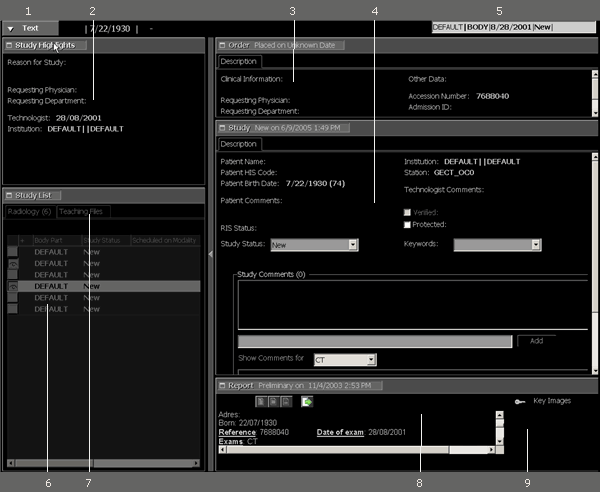
| # | Name | Description |
|---|---|---|
| 1 | Text button | Switches to the Image area. Available only when the Image area appears on the same monitor as the List and Text areas. |
| 2 | Study Highlights | Gives overview information. |
| 3 | Order panel | Provides order information. If more than the default 10 lines of clinical information is available, click  to access the complete text. to access the complete text. |
| 4 | Study panel | Provides patient demographics and the ability to change study status, assign keywords, mark studies as protected, and enter study comments). |
| 5 | Study summary | Lists summary with coloring to indicate whether it is in sync with the Image area. |
| 6 | Study List | Shows current and prior studies. |
| 7 | Teaching files tab | Provides access to teaching files and folders. When the Teaching files tab is displayed, different panels appear in the Text area: Study Highlights, Study List, Description, Comments (for viewing and adding teaching file comments and reference links), and Key Images. |
| 8 | Report panel | Shows report text. |
| 9 | Key images | Displays any key images for the study. |
Also present in the Text area is the synchronization lock, represented by a lock icon. By default, synchronization is set to unlocked, so that navigation of text and images within studies is independent. By left-clicking the lock, however, the Text area and Image area become synchronized. Single clicking a study displays both text and image information, and navigating among different studies for a patient updates the Text area with the text for that study. Synchronization can be disabled by clicking the lock icon once more, again allowing independent navigation of text and images.
 | Note: Some of the Text area features are access-controlled through licensing or permissions, so not everyone will see all of the described features. |
Required permissions
General: Text Area > Enable Text Area operation