Certain Image area commands are selected from a context menu. If the context toolbar is unpinned and displayed in button mode, the context menu appears below the context toolbar buttons. In other cases, the context menu appears on its own (see sample images below).
To select Image area context menu commands
Right-click an image to be affected by the context menu command.
If a tool is active, it may take up to three right-clicks until the context menu appears. On the first right-click, any started tool action is completed. On the second right-click, the active tool is deactivated and the base tool is activated. Then on the third right-click, the context menu appears.
Place the pointer on one of the context menus (such as Apply to Series or Export).
For all menus except Add to Key Images, the options Image, Series, and Study appear as a second-level menu. If the image you clicked on is selected, the Selected Images option also appears.
Unless using Add to Key Images, click Image, Series, Study, or Selected Images—whichever of these you want to apply the context menu command to.
Depending on the selection, the action is performed or a dialog opens.
| Context menu below context toolbar buttons (unpinned mode) | Context menu on its own (pinned mode) |
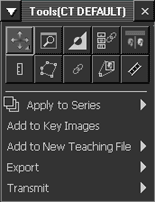 |
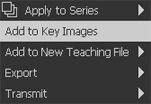
|