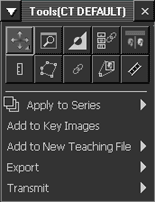
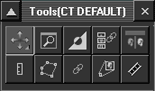
The Image area context toolbar can be pinned in place such that it remains open as a floating palette. Otherwise, you display it by right-clicking or Ctrl + right-clicking anywhere in the Image area. When you move the pointer away from an unpinned context toolbar, it closes. It can be pinned whether in button or text menu mode.
To pin the context toolbar
To display the context toolbar, right-click an image in the Image area until it appears.
In the context toolbar title bar, click Pin Toolbar.

The context toolbar stays open and the context menu no longer appears with it. To move the context toolbar to another location, drag its title bar. To see the context menu commands (such as Add to Key Images and Export), right-click on an image.
To unpin the toolbar
In the context toolbar title bar, click Pin Toolbar.

Or, close the context toolbar by clicking Close.

 | Note: The current context toolbar state is not saved. The context toolbar is always initially unpinned. |
| Unpinned context toolbar | Pinned context toolbar |
 |
 |