IMPAX 6.5.1 Client Knowledge Base: Extended > Reading studies > Applying Image area tools
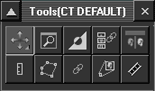
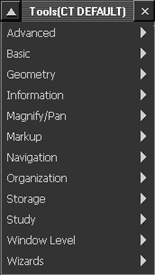
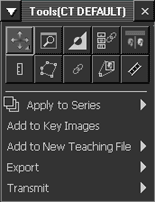
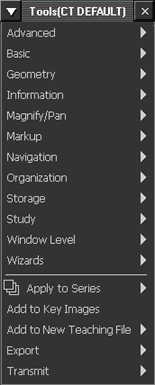
Some Image area tools can or must be selected from the top toolbar of the Image area. Others are selected from a context toolbar. The context toolbar can be displayed in one of four modes: unpinned button mode, pinned button mode, unpinned text menu mode, and pinned text menu mode. (See sample images below.) How you select tools from this toolbar varies according to the mode used.
Unpinned button mode
In this mode, the context toolbar displays a set of buttons that are configurable per user or role, based on modality (and body part, optionally). The Image area context menu commands appear below the buttons.
To select tools from an unpinned context toolbar
Unless configured for Ctrl + right-click, right-click any image in the Image area until the context toolbar appears.
If a tool is active, it may take up to three right-clicks until the context toolbar appears. On the first right-click, any started tool action is completed. On the second right-click, the active tool is deactivated and the base tool is activated. Then on the third right-click, the context toolbar appears.
In the context toolbar, click the button representing the tool to activate.
Move the pointer off the context toolbar.
The context toolbar closes. The selected tool is active.
Pinned button mode
When you pin the context toolbar in place, it remains open. It contains the same buttons as in unpinned mode, but does not include the Image area context menu.
To select tools from a pinned context toolbar
Click the button representing the tool to activate.
Move the pointer off the context toolbar.
The selected tool is active. The context toolbar remains open.
Unless configured for right-click, hold down the Ctrl key and right-click an image in the Image area.
Place the pointer on the appropriate menu (such as Advanced, Organization, or Study).
An alphabetical second-level menu of tools is displayed.
Click the name of the tool to activate.
The context toolbar text menu closes. The selected tool is active.
Pinned text menu mode
When you pin the context toolbar in place, it remains open and no longer includes the Image area context menu.
To select tools from a pinned context toolbar in text mode
Place the pointer on the appropriate menu.
From the second-level menu of tools, click the name of the tool to activate.
Move the pointer off the context toolbar text menu.
The selected tool is active. The context toolbar remains open in text mode.
| Unpinned button mode | Pinned button mode |
![]() |
|
| Unpinned text menu mode | Pinned text menu mode |
![]() |
![]() |
Topic number: 8397 Applies to: IMPAX 6.5.1 Client Knowledge Base |