Use the Image Selection tool to apply a tool action to several images at once, but not necessarily to an entire series of images. You can also use it to apply tool actions to images in some series or studies, but not others.
To select series or images
From the Image area context or top toolbar, click Image Selection.

or
If using the context toolbar text menu (Ctrl + right-click), select Organization > Image Selection.
If required, change the scope of selection to image, series, or study.
Scope defines whether individual images or all images in the series or study are selected.
Click the images, series, or study to select. To select a sequence, press Shift and click the first and last item to select.
Selected images are tagged in the upper-left corner:
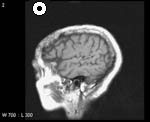
Apply tools (such as Window Level or Rotate Right) to the selected images.
The selected images are affected by the tools used. To deselect selected images, click them again with the Select tool active.
 | Tip: If images (not series or studies) are selected and the active tool scope is set to Series, the entire series is affected by the tool action—not just the selected images. To limit the action to selected images, change the tool scope to image, then apply the tool. |