With IMPAX's Composite Layout feature, you can drag and drop images into a print template. These images can be from different modalities and acquisition stations. In some templates, you can also include text. These pages can then printed to film or to paper. For paper printing, you can use any standard Windows printer configured for your workstation. For information on using a standard Windows printer, refer to the Microsoft Online Help.
| Blank Composite Layout print template | Data-filled Composite Layout print template |
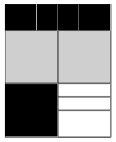
|
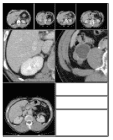
|
To print images using a composite layout
In the Image area, display all images to include in the composite layout print.
From the context or top toolbar, click Composite Layout Chooser.

Or, if using the context toolbar text menu (Ctrl + right-click), select Storage > Composite Layout Chooser.
To print patient names and accession numbers on all pages, in the Composite Layout Chooser dialog, select the Show Text Headers checkbox.
To print page numbers on all pages, select the Include Page Number checkbox.
To save toner when printing to paper, select the Use white background for paper printing checkbox.
From the Layout list, select the print layout to use.
The template updates to reflect the selected layout.
If printing to a DICOM film printer, from the Printer list, select the printer to use.
If printing to a DICOM film printer, from the Preset list, select the print preset to use.
Navigate to an image to print, place the pointer over it, and drag it into an image element of the template. Repeat for all images to include on the print.
To see which template elements are Image Scale to Fit or Image True Size areas, place the pointer over the element and read the tooltip.
If the template includes User Defined Text elements, place the text as follows:
Right-click on the element.
From the menu, select one of the study attributes (such as Study Date or Operator) or select Freeform Text.
If using Freeform Text, type the text to include on the print.
You cannot include multibyte characters (such as Chinese text) as freeform text.
Placed text does not appear immediately. To see it, use Print Preview.
Make any needed adjustments to the layout.
To remove an image, right-click it and select Delete.
To change text, right-click it and select a different study attribute or select Freeform Text and type the text to include.
To start over again, click Reset.
To print immediately, click Print (for a film printer) or Paper Print.
or
To verify that images and text are correctly displayed before printing, click Print Preview and preview the composite print.
If printing to a paper printer, from the Windows Print dialog, select print options and click OK.
 | Note: When printing to paper, any applied GSPSS is not included as part of the print. |