The Composite Layout print feature allows users to drag and drop study images into a predefined template, then print the images. Included images can be from different acquisition stations and modalities. Text can also be included.
| Blank Composite Layout print template | Data-filled Composite Layout print template |
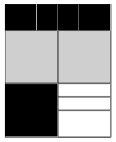 |
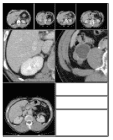 |
Before the Composite Layout print feature can be used, you must create one or more templates. These templates become available site-wide. They print only in grayscale.
 | Note: You must define the printable area before creating a Composite Layout print template. |
To create a Composite Layout print template
From the Configure drawer menu
 , select Preferences.
In the navigation pane, select a top-level role.
Adding Composite Layouts to one top-level role adds them to all top-level roles.
In the details pane, expand the Image Area bar.
Switch to the Composite Layout tab.
Click New.
Type a Layout Name for the new template.
Double-byte characters (for East Asian languages) are not supported in this field.
Select the Film Size and Orientation to use.
All possible size and orientation values for the available film printers are listed as options.
From the Matrix Sizes list, select the number of columns by rows in which to divide the printed sheet.
Options available range from 1x1 to 12x12, plus 20x20.
In the preview grid, right-click on an empty area to add image or text elements—areas for users of the template to place images or text into.
Image elements can be Scale to Fit or True Size. Text elements can be predefined study attributes (such as patient name or study date), report text, or user-defined text.
Modify the grid elements as required.
To move a grid element, drag it to a new position.
To resize a grid element, click it to display control handles, then drag one of the handles to a new position.
To delete a grid element, right-click it and select Delete.
To change the grid element type, right-click it and select a different option from the menu.
When the template is as you want it, click Save.
The template information is displayed in preview mode. To change the grid elements, click Edit.
Created templates become available for selection when using the Composite Layout tool.