When defining permissions for the different users in the system, PACS Administrators must balance two needs:
Workflow. Each PACS user must have the tools required to complete his or her job, to keep both the Radiology department and the radiology services provided to clinical users running smoothly. For example, the clinicians need access to only a subset of the tools that radiologists do.
Security. Increasingly, sites must conform to privacy and security regulations that may be disruptive to workflow if implemented inappropriately. For example, in an emergency a radiologist may need access to a study that would normally be denied based on privacy regulations.
Permissions are role-based
Permissions are role-based, meaning that you set permissions for groups of users. For example, you can define a set of permissions for the Clinicians role and all users belonging to that role automatically inherit those permissions.
But IMPAX also allows you to handle exceptions. For example, a radiologist can be part of the Rads role. But for VIP studies, such as the chest x-ray of a celebrity, you can create a role called VIP Rad Review. Then, you can assign the appropriate permissions to that role. The radiologist can belong to both the Rads role and to the VIP RAD Review role (Defining secondary roles for a user). Then, the radiologist can access the information available to both roles. Permissions are merged across roles, so the sum of all the radiologist’s permissions—VIP Rad Review + Rads—determines what the radiologist can see.
Permissions are merged from all roles
Permissions are merged. Roles inherit them from all roles above them in the hierarchy. For example, in the following hierarchy, the Paediatrics role inherits the permissions from St. Mary's and from Radiology:
St. Mary's -- permission 1
Radiology -- permission 1 + permission 2
Paediatrics -- permission 1 + permission 2 + permission 3
Malcolm
When color highlighting is not enabled, Gray signals a permission that has been inherited from another role. When color highlighting is enabled, a permission shown in a color that does not match the selected role has been inherited from another role.
When planning permissions, you can use inheritance to your advantage. You can set general permissions that apply across many roles at a very high level in the role hierarchy, then set up more specific permissions for roles that are further down.
Beware that giving the ability to access an operation turns that operation on for all roles and users who inherit that permission, even if you disable the operation at a lower level in the hierarchy. For example, if you give the Print Study operation to Radiology, then remove that operation in the subrole, Scheduler, all users in the Scheduler role can still print.
St. Mary's --
Radiology -- print
Scheduler -- print + not print
Donna S. -- she can print
To determine all of the operations that are enabled for a particular role, including all operations from inherited permissions, view the merged operations report.
Permissions can be general or study-based
General permissions
General permissions permit access to functionality. They specify whether a user can see and use entire areas of the application or have access to specific tools. For example, you allow only certain roles access to diagnostic tools such as Histogram Equalization, whereas others, such as nurses, are not given access to this tool.
Study-based permissions
Study-based permissions give access to functionality for a given set of studies. For example, you can implement a policy that allows radiologists full edit access to studies in the radiology department, but only view access to studies in the cardiology department. Study-based permissions are made up of two parts:
Operations—the actions allowed by a permission, such as dictation, printing, and viewing reports. You can further refine operations by setting a study status flag on the operation. For example, you can allow printing only on dictated studies. Refer to Operations reference.
Study access rules—the set of studies a permission applies to. Refer to Defining new study access rules.
Permissions can be specified for emergency access
In normal clinical workflow, which is extremely dynamic, predicting who needs access to what studies when is difficult.
In an emergency, a clinician may need to search for and access a celebrity chest x-ray. On a normal search, VIP studies such as this would not be shown. But, you can define a permission for use in emergency access. When emergency access studies are present they are not immediately visible, but if a clinician must access them, he or she can view them by entering a reason for access when opening the study. The clinician knows that something is present, but can view it only if required.
Before viewing an emergency access study, users are given a clear disclaimer that this action is being audited. This solves one of the biggest patient confidentiality problems—people who search for VIP patients based on a rumor the patient has been admitted.
Permissions are displayed in a hierarchical format
Created permissions are shown in the For permission list of each role, with separate lists for general and study-based permissions. These lists are ordered using the same hierarchy as roles and users. For example, the following hierarchy contains three roles, each with general permissions:
St. Mary's -- St. Mary's permission
Radiology -- St. Mary's permission + Radiology User permission
ER -- St. Mary's permission + Radiology User permission + ER permission
If you select the ER role and switch to the General tab, the For permission list shows:
St. Mary's permission
Radiology User permission
ER permission
Permissions can be color highlighted
Color highlighting allows you to associate the permissions shown in the For permission list with each role they are assigned to, and to determine which operations are assigned to each permission.
To view color highlighting, you must enable it. Once it is enabled, in the navigation pane, select a role.
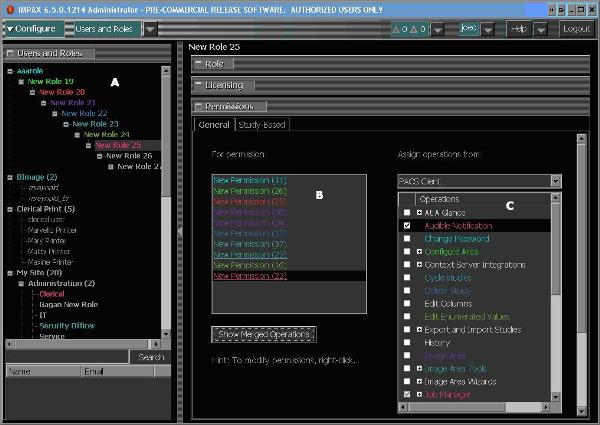
The text color of the selected role, and all roles at a higher level in the hierarchy, changes; each role shown in a different color (as shown by letter A of the following graphic). The For permission list shows all permissions assigned to the color highlighted roles. The text color of each permission matches the color of the role it is assigned to (as shown by letter B of the following graphic.
When a role is selected, the last permission in the For permission list is also selected. This changes the text color of operations in the Assign operations from list. The text color of each operation matches the color of the permission it is assigned to (as shown by letter C of the following graphic). If an operation is assigned to more than one permission, the text color matches the assigned permission lowest in the hierarchy.
Selecting a different permission in the For permission list, color highlights operations for that permission and all permissions at a higher level in the hierarchy. If an operation is assigned to a permission lower in the hierarchy than the selected permission, its text color is white.