Create your own print and display demographic layouts using the Demographic Layout Manager. Demographic layouts define what study information appears around the images, and where it is located.
To create a demographic layout
On the Setup tab, click Source Manager.

Switch to the Other tab.
Click Demographic Layout Manager.

In the Manager dialog, click New Layout.

Type a Layout Name for the new layout.
From the Modality list, select the modality that uses the new layout.
Click OK.
Click Display
 or Print.
From the DICOM Fields for <Modality> list, select the DICOM field to place on the demographic layout.
Under the Display and Print buttons, select the blank field where you want to place the DICOM field.
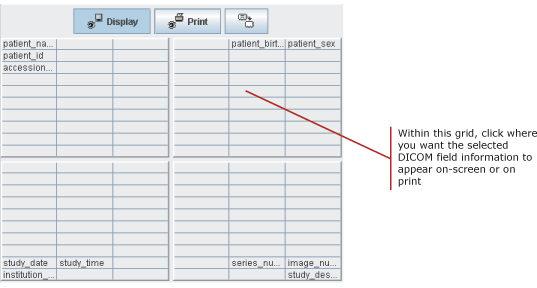
For each DICOM field to include, repeat steps 9 and 10.
Click Save Layout.

If a different modality is selected before the layout is saved, a Save Layout prompt will appear. In the prompt, click Yes.
 | Tip: In multiple IMPAX cluster configurations, we recommend having the same demographic layouts for both print and display in all linked clusters. |
Required permissions
Administration Tools: Demographic Layout Manager > View operation
Administration Tools: Source Manager > View operation