The Scout tool shows the position of images that were captured in CT and MR studies. Scout displays an image orthogonal to the images in the currently selected series. It shows lines indicating the intersections of the images in the series with the orthogonal image. The Scout tool is enabled only when a series in the study has a scout image.
To view scout images
Display a CT or MR series that contains scout images.
From the context or top toolbar, click Display Scout.

Or, if using the context toolbar text menu (Ctrl + right-click), select Navigation > Display Scout.
Click the image to locate on the scout.
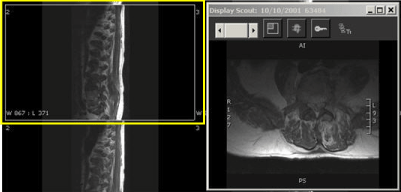
The Scout window opens and shows you the slice location. A highlight box appears around the image that corresponds to the slice location.
If additional scout images are available, in the Scout window, click the scroll bar to view them.
The next scout image displays and shows the slice location of the currently selected image.
 | Tip: To
leave the Scout window open, but move it out of the way, click Dock
Scout Window. |
