Use the Markup Annotation tool to add text (up to 16 characters) to an image to highlight an aspect of the study.
To annotate an image
From the Image area top toolbar, Markup button menu, select Markup Annotation.

In the Text field, type or select the text to place.
You can enter Chinese, Japanese, or Korean characters (single-byte, phonetic, or ideographic).
Under Orientation, select Horizontal or Vertical as the text orientation.
To change the annotation typeface or size, click Font. Select font options and click OK.
Font option selections (except for the Font style) are saved.
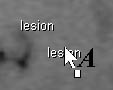
Place the pointer over the image location to annotate, then click.
The annotation text is placed.
To annotate other parts of the image, repeat step 5.
To add different annotation text, repeat steps 2–6.
To close the dialog, click Close.


Note:
The Delete key cannot be used to delete annotations.
Required permissions
Study-based: Image Area Tools > Markup operation