You can conduct full-text searches of all topics in the Knowledge Base.
To find Knowledge Base topics using Search
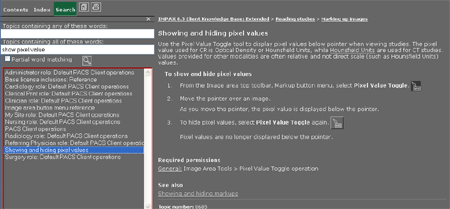
In the navigation pane, click Search.
Enter search terms as follows:
If searching on just one term, type it in either the Topics containing any of these words or Topics containing all of these words fields.
To find topics containing any one of two or more terms, perhaps synonyms such as finding searching, type the terms into the Topics containing any of these words field.
To find topics containing a particular set of words, type those words into the Topics containing all of these words field.
To find partial word matches as well—for example, to have a search on navigat also return topics that contain
navigate,navigation,navigated, ornavigating—select the Partial word matching checkbox.Click Start search or press Enter.


Tip:
When using Internet Explorer, we recommend using the Start search button instead of the Enter key. If there are no search results, pressing Enter in Internet Explorer results in the Search pane closing and an error being reported in the status bar. If you click Start search instead, the Search pane remains open. An error still appears in the status bar, but you can ignore it.
A list of the topics containing the search words appears. Note that they are in alphabetical and not relevance order.
Click the search result of interest.
In Internet Explorer, the search terms are highlighted. To remove the highlighting, right-click in the main pane and select Refresh.
Search tips
Searches are not case-sensitive; for example, search, SEARCH, and Search all return the same results.
If the results are too broad, use the Topics containing all of these words field and add keywords. For example, using the keyword search may return many results; using the keywords search wildcard returns only topics that contain both words.
Punctuation marks such periods, quotation marks, commas, and hyphens are ignored.
Common words such as a, of, but, and the are ignored.