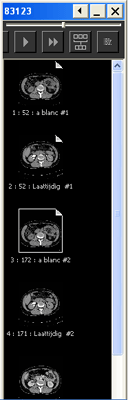
 When studies contain many series,
they might not all be displayed in the Image area at once. In these cases,
use the Available Series palette to navigate
through the series. IMPAX can
be configured such that
the palette opens automatically when a study contains more than one undisplayed
series,
but you can also open and close it manually.
When studies contain many series,
they might not all be displayed in the Image area at once. In these cases,
use the Available Series palette to navigate
through the series. IMPAX can
be configured such that
the palette opens automatically when a study contains more than one undisplayed
series,
but you can also open and close it manually.
 | Note: The white triangle in the upper right corner of the image indicates that the series has been previously displayed at some time in the Image area. If there is no triangle, the series has never been viewed. |
To open the Available Series palette
From the Image area top toolbar, click Show Available Series.

or
If using the context toolbar text menu (Ctrl + right-click), select Navigation > Show Available Series.
The Available Series palette appears. A thumbnail of each series appears in the palette. The active series in display is highlighted by a thin white border.
To enlarge or reduce the display of thumbnail images in the palette, drag the slider at the top of the palette.
To show the series thumbnails as a text instead, click Report View.

Drag the title bar of the palette to any location on-screen or click
 to
embed the palette at the side of the screen.
to
embed the palette at the side of the screen.Note:
The Available Series palette size and position are persistent settings. When navigating to other series, the palette might hide part or all of the image displayed.