Use the Markup Rectangle tool to measure a rectangular region of an image.
To measure a rectangular region
From the Image area top toolbar, Markup button menu, select Markup Rectangle.

The pointer has a rectangle shape attached to it.
To enlarge or reduce the rectangle before you place it, move the mouse scroll wheel.
Place the rectangle over the region to measure, then click.
A rectangle appears with control points and measurement values such as Perimeter, Area, and Average. Which values appear is based on user profile settings.
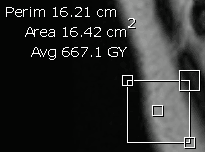
If necessary, move or resize the rectangular markup:
To resize the rectangle, drag the lower-right control point to a new position.
To move the measurement text, drag the upper-left control point to a new position.
To rotate the rectangle, drag the large, upper-right outer control point to a new position.
To move the rectangle, drag the center control point to a new position.
To set the measurement, right-click.
The measurement values and units used depend on the calibration applied or available to the study. Refer to Understanding measurement values and units used.
To delete the rectangle, press the Delete key.
 | Note: When values are approximate, a ~ character appears. If part of the markup is off the image, an asterisk (*) appears after the Average and Standard Deviation measurements (if displayed). The off-image pixels are not included in the Average and Standard Deviation calculations but are still included in the Pixel, Perimeter, and Area values. If the markup is completely off the image, the Average and the Standard Deviation are not displayed. |