Use the Histogram tool to select a region of interest and display a histogram showing the frequency of pixel values inside that region. This tool cannot be applied to color images.
To display histogram values
From the Image area context or top toolbar, click Histogram.

Or, if using the context toolbar text menu (Ctrl + right-click), select Markup > Histogram.
The pointer has a rectangle and graph shape attached to it.
To enlarge or reduce the rectangle before you place it, move the mouse scroll wheel.
Place the rectangle over the area to get a histogram of, then click.
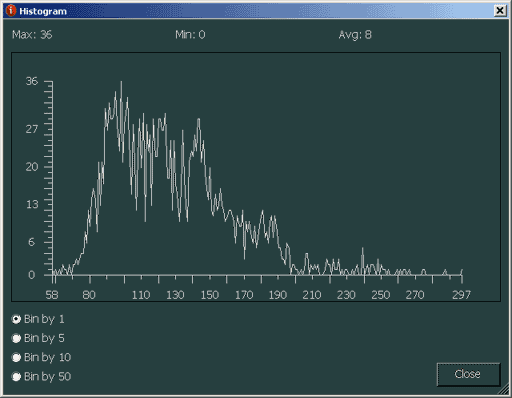
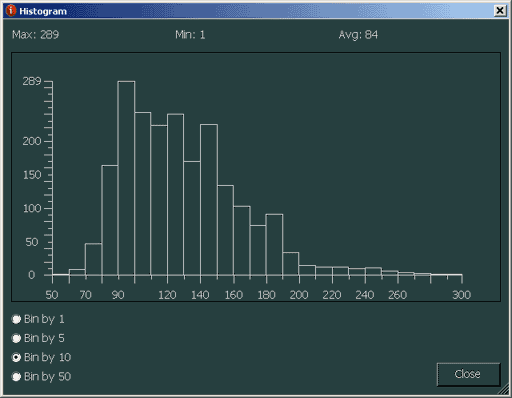
A dialog appears displaying a histogram graph of maximum, minimum, and average values in the selected area. The x-axis displays a range of pixel values contained in the region of interest (for example, for CT this is Hounsfield units). The y-axis displays the frequency of each pixel value within the region of interest (such as, how many times did this pixel value occur?).

Note:
The values shown in the histogram x-axis have the rescale slope and intercept applied to them. For example, suppose the Hounsfield units in the histogram rectangle range from -983HU to -1024HU (according to the status bar or pixel value toggle). The image has rescale slope of 1 and rescale intercept of -1024. The histogram axis will be 0 to 41 (-1024 minus -983).
To get a different display of the data, select different bin widths with the Bin by 5, Bin by 10, or Bin by 50 options.
The bin options control the granularity with which frequency is calculated. This can be adjusted to make it easier to see trends in the data.
To close the dialog, click Close.
Example effect of Bin by 1 vs. Bin by 10