Use the Nonlinear Window Level tool to change the brightness and contrast of an image by graphically adjusting a curve. The curve represents the VOI LUT (Value Of Interest LookUp Table) applied to the image. The tool is most useful for DR images.
To graphically adjust the window level
From the Image area context or top toolbar, click Nonlinear Window Level.

or
If using the context toolbar text menu (Ctrl + right-click), select Window Level > Nonlinear Window Level.
Click the image to adjust.
 A
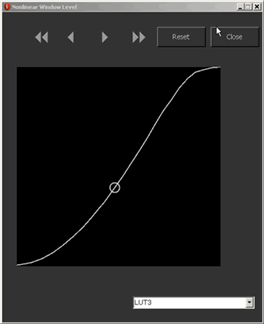
graph depicting the VOI LUT curve of the image is displayed in a dialog.
(See image at right.) If the image does not have a VOI LUT in its header,
a default line is used instead.
A
graph depicting the VOI LUT curve of the image is displayed in a dialog.
(See image at right.) If the image does not have a VOI LUT in its header,
a default line is used instead.In the Nonlinear Window Level dialog, dynamically adjust the image contrast and brightness by one of the following methods:
To change the contrast (window width), drag the circle up or down.
To change the brightness (window center), drag the circle to one side or the other.
To adjust the low or high ranges of the window, click either end of the line to move the circle.
To make fine adjustments, click
 or
or
 .
.To make broad adjustments, click
 or
or  .
.To select a preset window level, select an option from the list below the graph.
To reset the curve to the image's VOI LUT curve, click Reset.
To close the dialog, click Close.
The image is displayed as per the dialog selections.