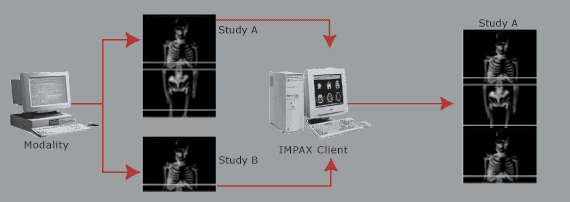
Merging a study means combining the images from multiple studies into a single study. Merge is used when images for one patient are captured in multiple studies but the images should all be in a single study.
 | Note: Within a multi-site environment, any structural changes such as those caused by merge are not synchronized with the remainder of the sites in the enterprise. |
To merge two or more studies into a single study
To find the studies to be merged, in the List area, use Advanced Search.
In the search results, select the studies to merge.
From the Advanced Search bar menu
 , select Merge.
 If the selected studies are not for the same patient, a warning is displayed. Click OK.
In the Merge dialog, select the study you want to merge the images into.
Key image notes, voice comments, GSPS objects, CC objects, and CAD Mammo SR will not be merged.
Click Merge.
If the merge was successful, a dialog indicating the success is displayed. Click OK.
You are returned to the List area. Note that the study you merged the images into has an increased image count and the other study or studies have been removed. If the merge was not successful, a dialog indicating this is displayed. When you click OK, you are returned to the Merge dialog.
Note:
Studies containing a large number of images may cause the merge to timeout and fail. Therefore, use the Administration Tools if necessary.