IMPAX identifies and accepts duplicate images with different demographics and tracks the conflicts. This ensures physicians are not prevented from viewing studies with conflicts; however, a potential consequence exists of allowing the same image(s) to exist under two different studies or patients. If given permission to do so, you can resolve the conflict(s) by deleting one set of images or clicking Acknowledge. Clicking Acknowledge removes the conflict(s) without removing the images.
If you do not have permission to resolve the conflict(s), you receive a dialog indicating that demographic information contained within the study was found to be inconsistent. To acknowledge the warning, click OK and contact your system administrator.
To highlight any studies with conflicts, we recommend creating a Conflict worklist that filters on the conflict status.
While working on resolving conflicts you cannot initiate or answer instant messages, or share studies as long as conflicts still remain.
 | Tip: To find studies in conflict, from the Advanced Search, select the Conflict criteria and select Yes. |
To resolve study conflicts
Open a study that is in conflict in the Image area.
The Information dialog appears indicating that one or more conflicts exist and what the source of the conflict is.
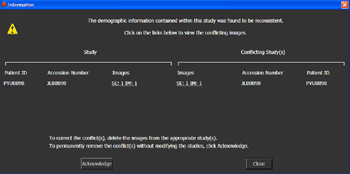

Note:
Until the conflicts are resolved, the Information dialog appears each time you log into IMPAX and view the study until the conflict is acknowledged or removed; however, the dialog only appears once per logged in session.
To correct the conflicts for individual images:
Click on a link in the second column for the image you want to resolve the conflict for.
The image is open in a Set Aside tab.
Delete the image in conflict.
To correct the conflicts in an entire study:
Make note of the images that are in conflict.
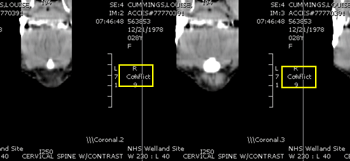
The word conflict is marked on each image that is in conflict (highlighted by the yellow rectangle in the illustration).
Click Close.
Delete the conflicted images (or the entire study) as you deem appropriate.
To permanently remove the conflict status without modifying the studies, click Acknowledge.
Note:
Clicking Acknowledge no longer flags the images with the Conflict label; therefore, it is more difficult to determine which images are in conflict in the future.
To confirm the removal, at the prompt, click OK.