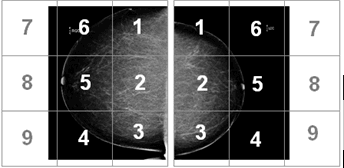
Use the 1:1 Navigator tool to display the breast image at one-to-one pixel size, where one detector pixel equals one screen pixel. IMPAX splits the breast image into cells as required. One cell may be sufficient to show some breast images while other images require up to nine cells for the entire image. You can navigate through the cells to view the entire breast image.
 | Note: The 1:1 Navigator tool can only be applied to 1-up CRM views for images that do not fit on the screen, and cannot be used with non-IMPAX presentation states. |
To display breast images manually at one-to-one pixel
Navigate to a 1x1 Comparative Review Mode view.
The 1:1 Navigator is only available for use with single view images such as Current CC, Compare CC, and so on.
If required, to configure the starting navigation position and direction, right-click 1:1 Navigator
 and select one of the following options:
Start chest wall top—start the navigation through cells in a clock-wise direction
Start chest wall bottom—start the navigation through cells in a counter clock-wise direction
If required, to change the size of the cursor, right-click 1:1 Navigator
and select: Cursor Size: Small, Cursor Size: Medium, or Cursor Size: Large.From the Image area top toolbar, click 1:1 Navigator.
The breast image is displayed at a one-to-one pixel size. Notice the cursor changes to indicate how many quadrants are required to view the entire breast image (the example below has three quadrants) and which quadrant is currently being viewed.

If the left and right images displayed do not contain the same number of cells, the higher number of cells is used for both. However, if one of the views requires only one cell and the other view requires multiple cells, the indicator is presented with two different quadrants.
To move to the next quadrant of the breast image, click 1:1 Navigator Next.

To move to the previous quadrant of the breast image, click 1:1 Navigator Prev.

 | Tip: You can assign keyboard shortcuts for 1:1 Navigator, 1:1 Navigator Next, and 1:1 Navigator Previous. |