On Application Servers running Windows Server 2008, all IMPAX user information is stored in the AD LDS database. To ensure that there is always an AD LDS instance available to authenticate users on the Clients, create a replica of the AD LDS database on a second Windows 2008 Application Server. After configuring the AD LDS replica, the AD LDS database is replicated every 15 seconds between the two AD LDS instances.
 | Note: To perform the replication, you can use either a Windows domain Administrator account, or, if the domain Administrator account is not available, you can add an account with limited privileges to the Administrator group. For instructions on how to add an account with limited privileges to the Administrator group, see Adding a user account to the Administrator group. |
To replicate AD LDS
Set up the additional Application Server running Windows Server 2008.
Ensure that AD LDS is installed on the server you set up in Step 1.
Log into the new server.
Select Start > Server Manager.
Under Roles, select Active Directory Lightweight Services.
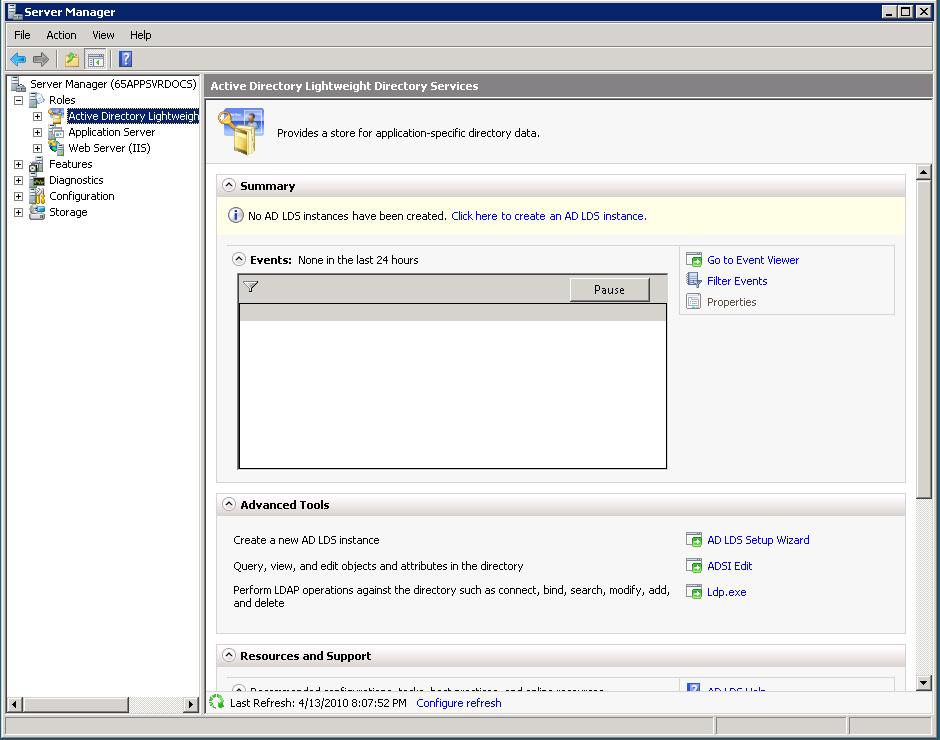
Under Advanced Tools, click AD LDS Setup Wizard. .
In the Active Directory Lightweight Directory Services dialog, click Next.
In the Setup Options dialog, select A replica of an existing instance, then click Next.
In the Instance Name dialog, type AgfaHealthcare.

Important!
The name of the replicated instance must be identical to the original instance.
Click Next.
In the Ports dialog, accept the default LDAP port number (389) and SSL port number (636) and click Next.
In the Joining a Configuration Set dialog, type the fully qualified domain name and LDAP port number of the AD LDS LDAP instance to be replicated.
Click Next.
In the Administrative Credentials for the Configuration Set dialog, select This Account.
In the User Name text box, enter domain\Agfaservice account where domain is the network domain and Admin is the account password.
In the following illustration, ts is the domain and Admin is the administrator account.
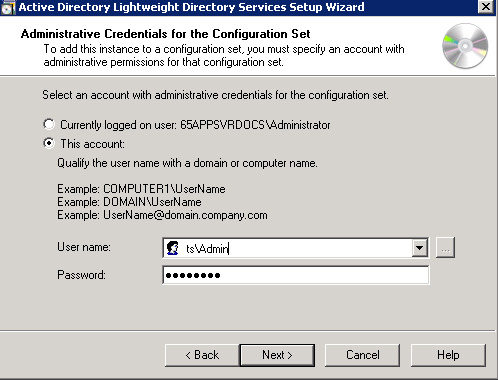
In the Password text box, enter the password for the account you specified in the previous step.
Click Next.
In the Copying Application Directory Partitions dialog, select the CN=healthcare,DC=agfa,DC=com partition and click Next.
In the File Locations dialog, in the Data Files and Data Recovery files text boxes, enter
C:\Program Files\Microsoft ADAM\AgfaHealthcare\data
In the Service Account Selection dialog, select Network Service Account. Click Next
If a confirmation message is displayed, click Yes.
In the AD LDS Administrators dialog, select Currently logged on user.
Click Next.
In the Ready to Install dialog, click Next.
The AD LDS instance is installed, and the instance is replicated.
Note:
The installation process takes a few minutes to complete.
When the installation is complete, click Finish.