The following table describes the icons used in Study List in the Text area and how they function.
 | Note: The following table assumes Strict Worklist is OFF. |
| Icon | Name | Description | Results: Study Lock OFF | Results: Study Lock ON |
|---|---|---|---|---|
 | Open images | Available images that are not currently loaded in the Image area | Single-click Images for this study are added into the Image area list (study or studies in view do not change, unless multi-study screen format is selected with an available slot). The Text area does not change. Double-click Images for this study are added to Image area and the Image area and Text area become synchronized for this study. | A single or double-click results in the Image area and Text area being synchronized with this study. |
 | Images being viewed—bolded | Images are currently loaded in the Image area and in view | Single-click Images are removed from the Image area list and images from the next study in the Image area list are displayed. However, no change occurs to what is in view in the Text area. If no studies remain, the patient is closed and the user is navigated to the next patient. If this is the last patient, the Text area closes. Double-click The Image area and Text area become synchronized for this study. | A single or double-click results in the Image area and Text area being synchronized with this study. |
 | Images being viewed—not bolded | Images are currently loaded in the Image area but not in view | Single-click Images are removed from the Image area. The Text area does not change (nothing changes visually for the user, except the study count). Double-click The Image area and Text area become synchronized for this study. | A single or double-click results in the Image area and Text area being synchronized with this study. |
 | Enterprise | Images are on a different PACS. | Single-click Images are removed from the Image area. The Text area does not change (nothing changes visually for the user, except the study count). Double-click The Image area and Text area become synchronized for this study. | A single or double-click results in the Image area and Text area being synchronized with this study. |
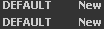 | Study List text bar—bar of study-related text to the right of each Open Images icon | Single-click The Text area updates to the information for this new study. However, the Image area remains unchanged (the images for this study are not added to the Image area). Double-click The Image area and Text area become synchronized for this new study (if they are not already). This includes launching images to the Image area if no images are currently loaded for this study. • If images do not exist, the behavior is the same as the single-click functionality. | A single or double-click results in the Image area and Text area being synchronized with this study. | |
 | The study has a report but no images. | Single-click The Text area updates to the information for this new study but the Image area remains unchanged (the images for the previous study remain in the Image area). Double-click The behavior is the same as the single-click functionality because the study contains no images. | Same result as the single-click functionality with Study Lock OFF because the study has no images. |